See where the space goes.
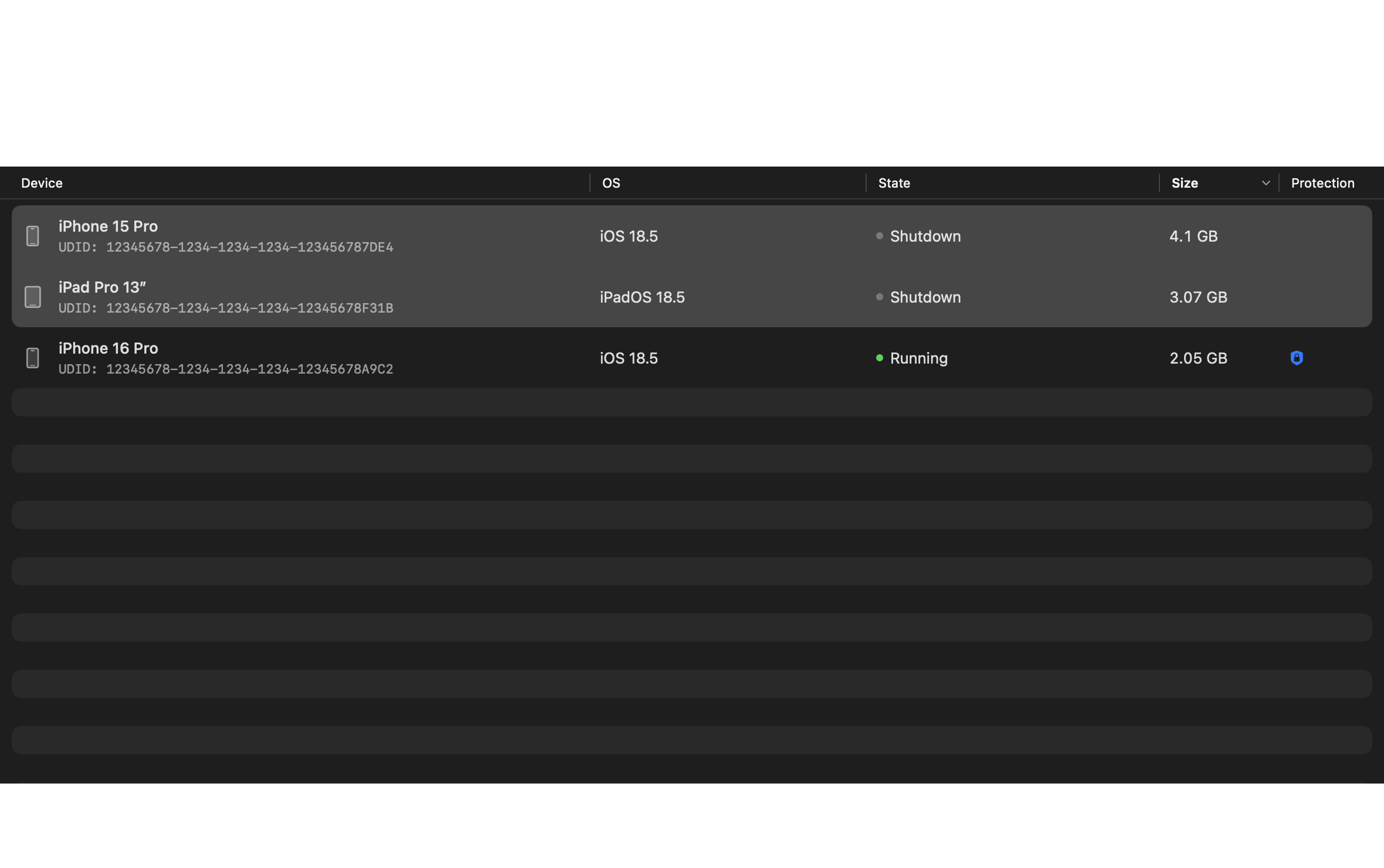
Sort simulators by size, search by name or system, and select several devices at once. No digging through Library folders.
 SimClean
Download for Mac
A LITTLE ORDER FOR YOUR XCODE WORKSPACE
Your simulators add up. SimClean helps you see what takes up space, keep the devices you need, and clear out the rest.
macOS 14+ · Apple Silicon · Xcode required
Available in English and Russian
LESS HOUSEKEEPING. BACK TO YOUR APP.
From a forgotten test device to that file you need to find. A few useful tools, together in a Mac app.
Sort simulators by size, search by name or system, and select several devices at once. No digging through Library folders.
Protect devices from deletion. Review the exact selection before removing anything. Running simulators are left alone.
Explore app containers and App Groups, filter recent files, and compare saved snapshots. Open a folder in Finder or Terminal.
A SHORTER CLEANUP ROUTINE
Refresh your simulator list and sort it by size.
Protect what matters. Select what you no longer need.
Review the selected devices, then delete or reset them.
You can delete selected simulator devices or reset their data. Deleting a device removes its installed apps and data. Resetting keeps the device but erases its apps, data, and settings. Shared operating system runtimes stay in place.
Protection prevents deletion. You can still reset a protected device after confirmation. Running devices cannot be deleted or reset. These operations cannot be undone.
Sizes estimate the space used by device folders and exclude shared operating system runtimes. APFS can share storage blocks, so the actual increase in free space may differ.
A Mac with Apple Silicon, macOS 14 or later, and Xcode with Simulator installed. Download the DMG, open it, and drag SimClean to Applications. You can choose your Xcode and device set in settings.
READY FOR YOUR NEXT BUILD
A small Mac utility for the simulators you use, and the ones you forgot about.